Build Daily

See where the crew is before you move the schedule

Manpower is for the morning labor call: which employees have pinged in, which jobs and service calls they are covering, who is already promised somewhere else, and which foreman can spare a person without breaking another crew. The map gives dispatch and operations a county-level view; the schedule, roster, skills, conflicts, and assets tell them what they can safely change.

From live crew pings to a workable labor plan

Start with the map instead of a phone tree

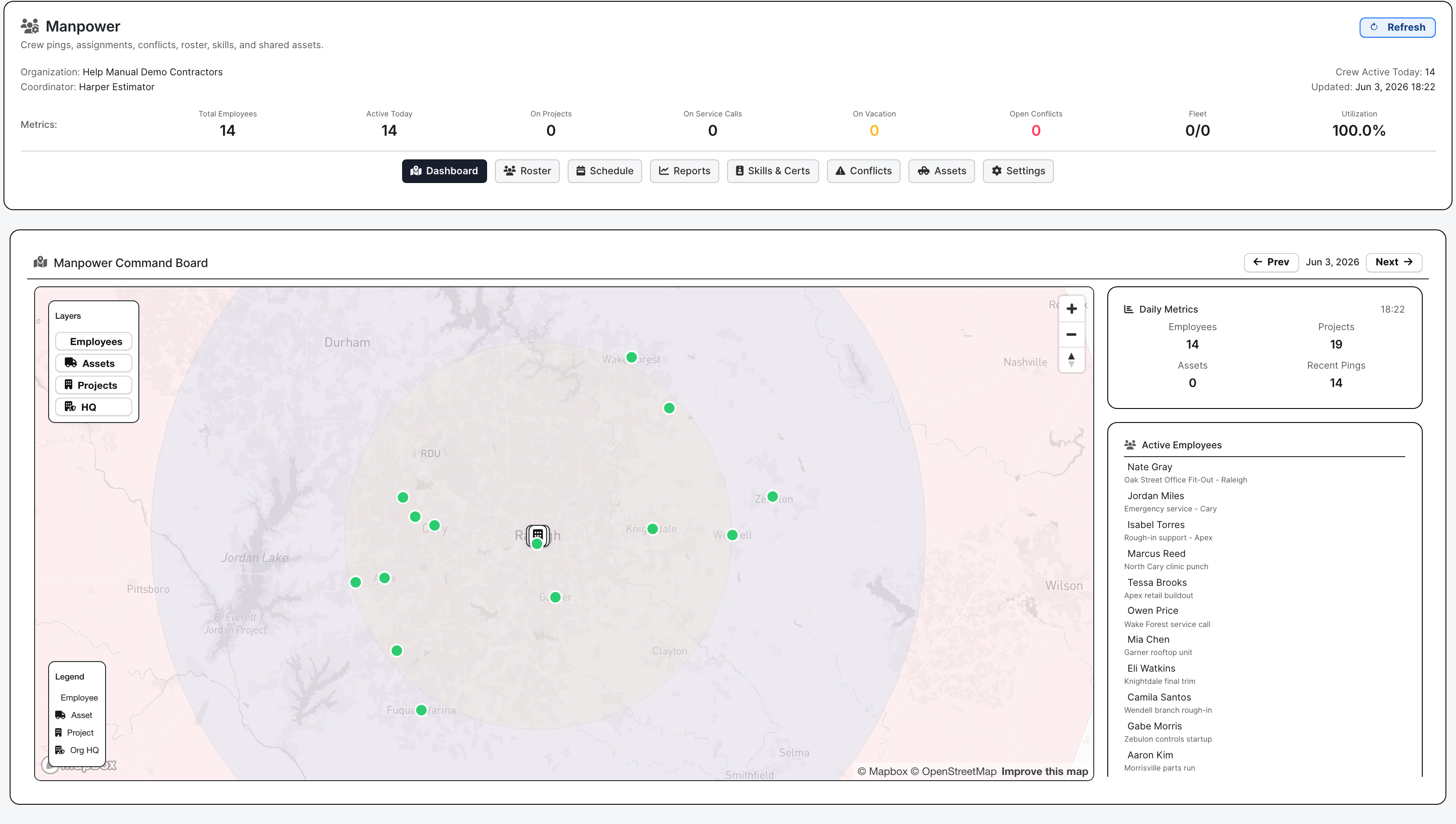
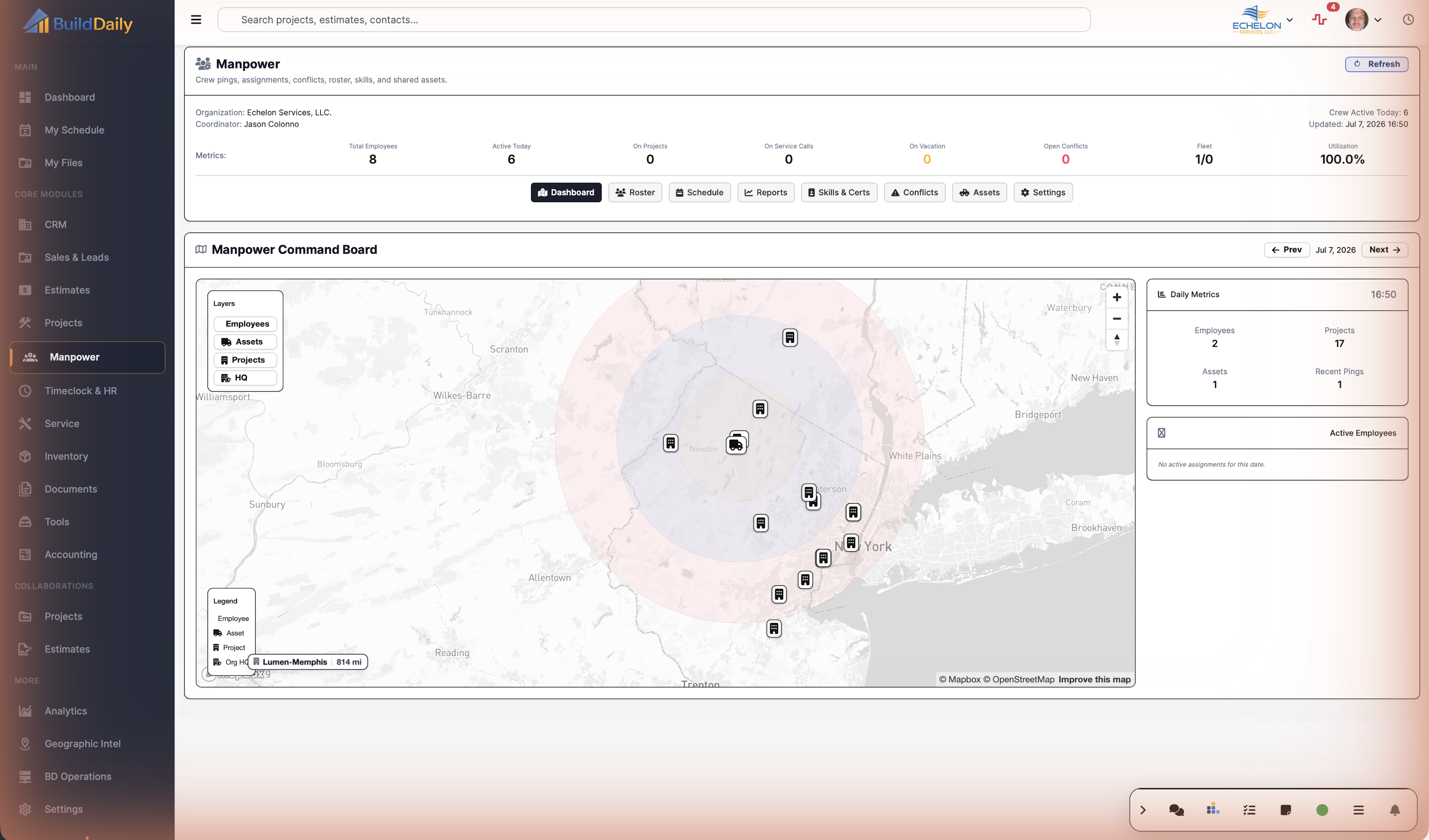
The dashboard shows the crew spread for the day: who has pinged in, where they are working, how many people are on jobs, how many assignments are exposed, and whether the plan already has conflicts.

  • Check the service-area map before moving a crew
  • Compare active employees, project load, service load, conflicts, and utilization
  • Jump to roster, schedule, reports, skills, conflicts, assets, or settings from the same desk
Manpower command board
A county-level crew map next to daily labor metrics and active employees.

Put Labor on Real Work

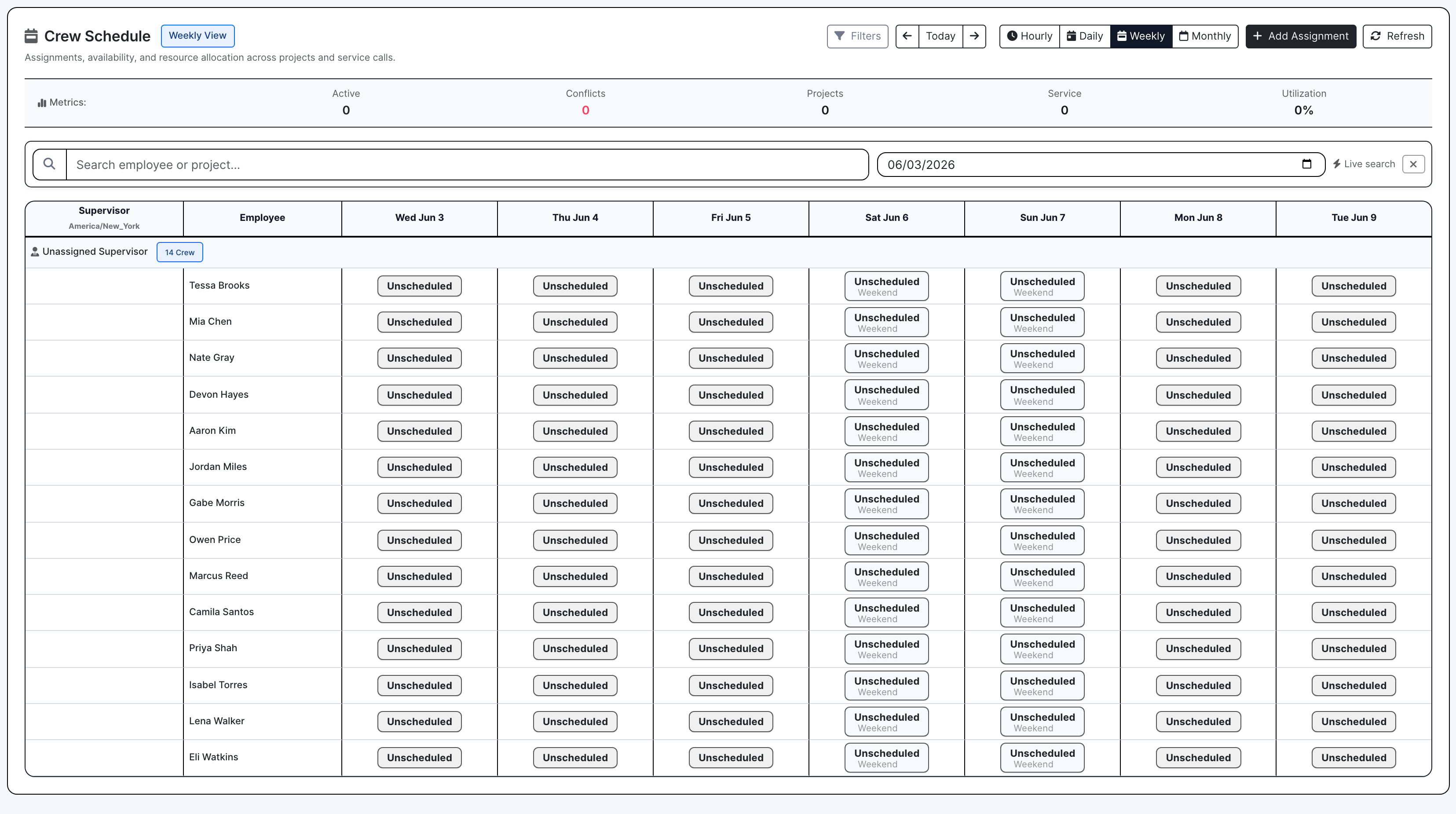
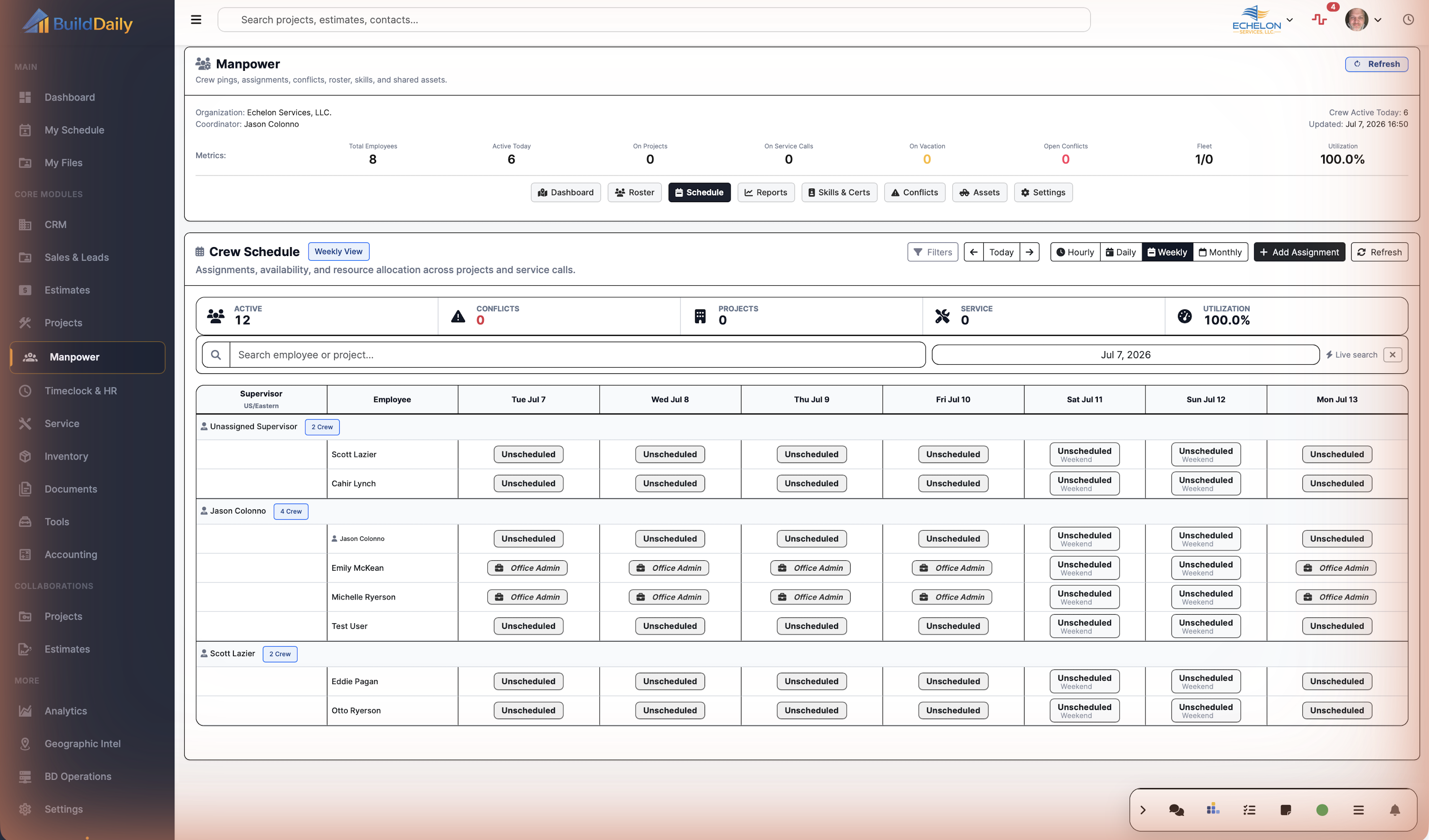
The schedule is built around assignments. A planner can assign people or assets to projects, service calls, estimates, or overhead codes, set role, supervisor, start and end time, add notes, then move or copy blocks when the week changes.

  • Plan project, service, estimate, and overhead labor from one schedule
  • Switch between hourly, daily, weekly, and monthly views
  • Move work when a job slips, an emergency service call lands, or a foreman changes the crew plan
Manpower schedule grid
The planner's working grid for placing labor.

Fix double-booking before dispatch

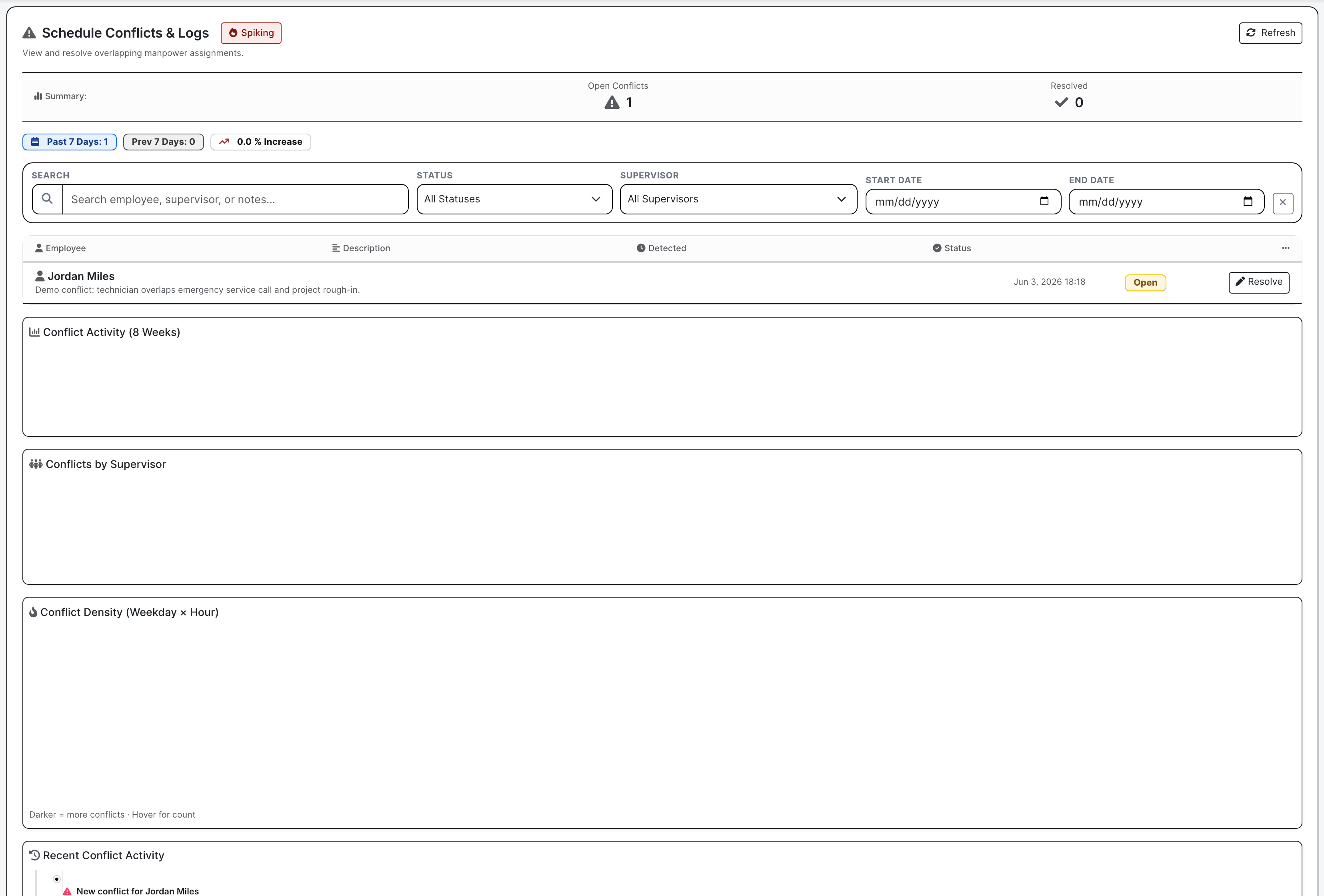
Conflicts make overlapping commitments visible by employee, supervisor, date, status, and notes. Operations can filter the list and resolve rows before a technician or foreman is expected in two places at once.

  • Catch overlapping assignments early
  • Filter by status, supervisor, and date range
  • Resolve each conflict so the plan matches what is actually happening
Manpower conflict review
Conflict rows turn a scheduling mistake into a visible task.

Keep the Roster Useful

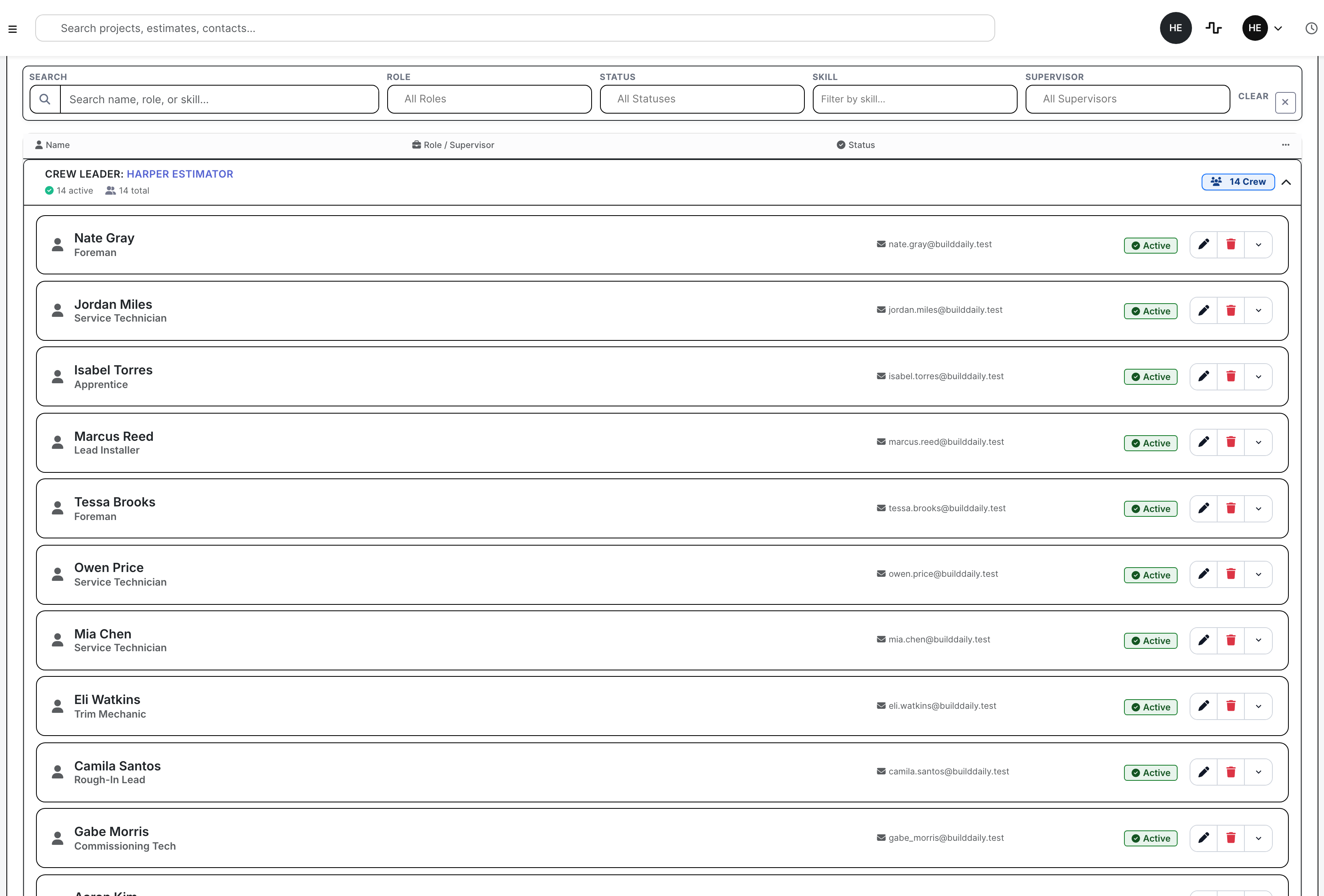
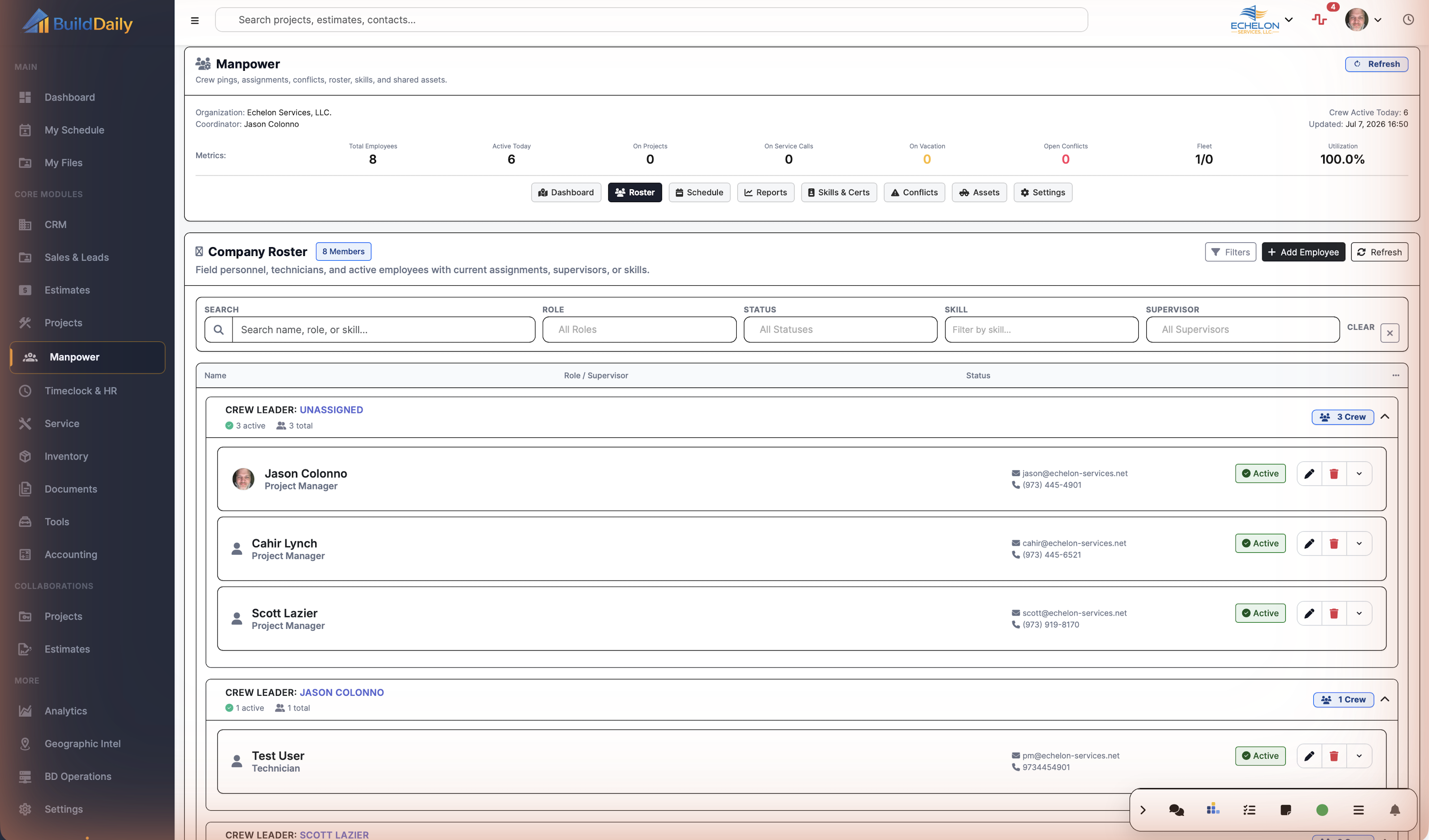
The roster groups workers by supervisor, role, status, current assignment, and contact details. The planner can see who is active, who reports to whom, and which profile needs cleanup before an assignment is trusted.

  • Track active field staff, technicians, apprentices, and foremen
  • Search/filter by name, role, status, skill, or supervisor
  • Open profile actions when a role, supervisor, or status changes
Manpower roster
Roster rows keep people records close to the schedule.

Check qualifications before assigning the person

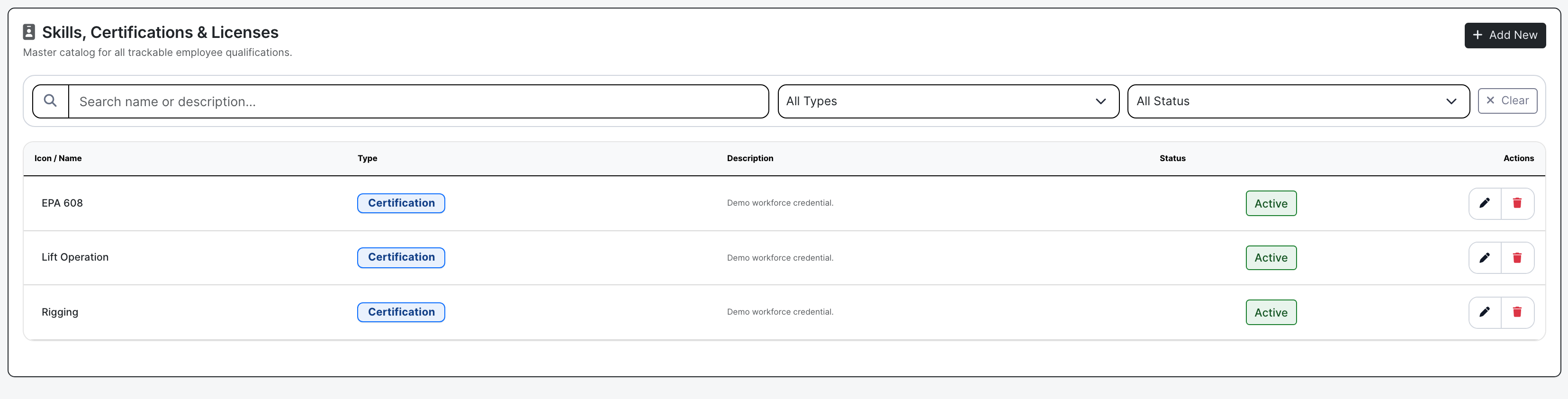
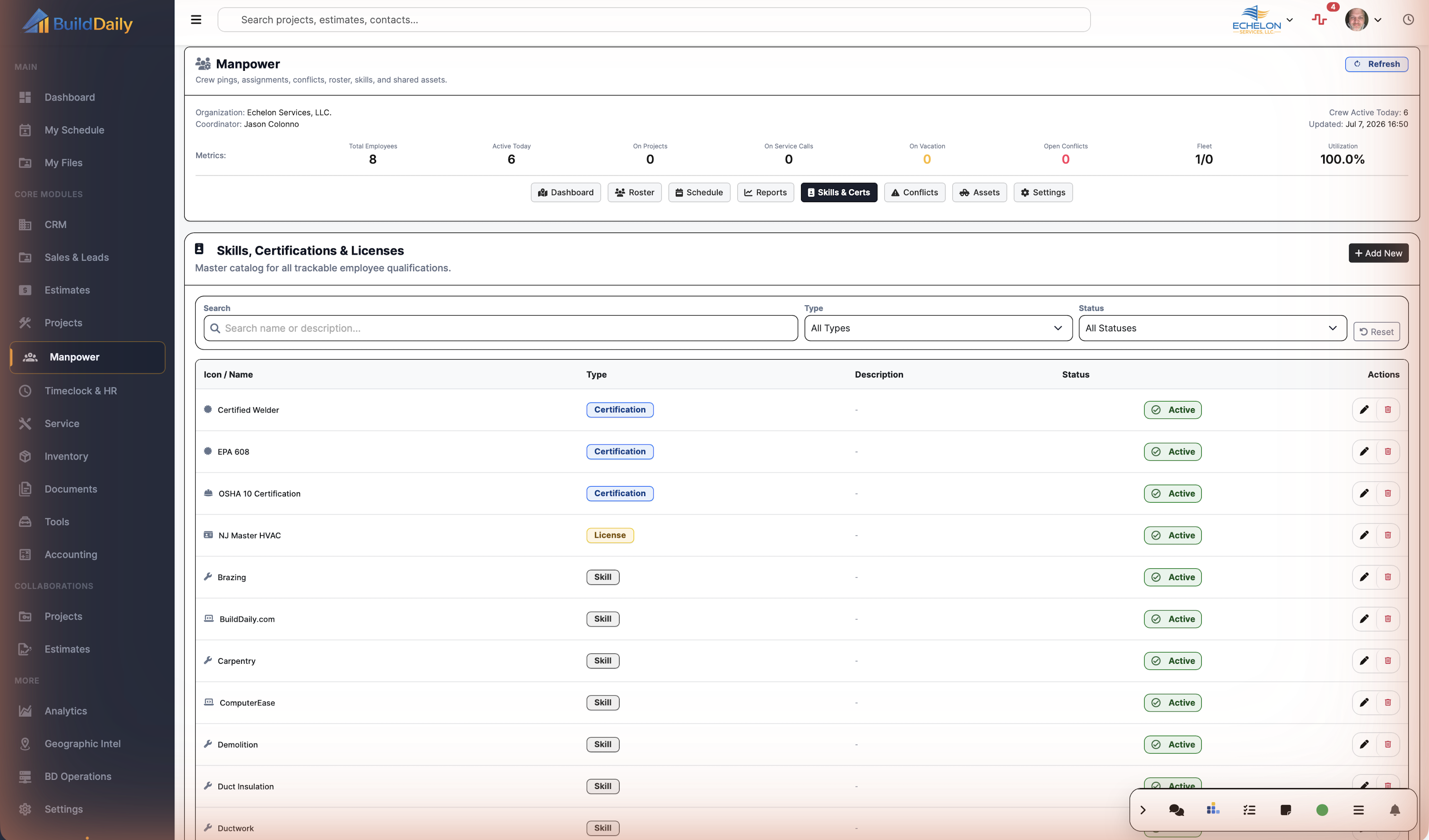
The skills catalog tracks skills, certifications, and licenses at the org level. That gives the planner a way to check EPA, lift operation, rigging, safety, license, and qualification records before specialized work is staffed.

  • Maintain skill, certification, and license records
  • Filter by type or active/inactive status
  • Use the catalog when employee profiles need qualification updates
Skills certifications and licenses
Credentials stay close to workforce planning.

What is in it

Crew planning

Place qualified people against real work before the week starts.

Schedule board Assign people to projects, service, estimates, overhead, or other supported work.
Day and range planning Review daily allocation and multi-day demand across teams.
Supervisor groups Organize crews and review responsibility by supervisor.
Assignment notes Keep shift, role, hours, location, and planning context with the assignment.

Conflicts and qualification

Catch labor problems before the field discovers them.

Overlap detection Flag people booked in two places at once.
Skills and certifications Match assignments to recorded skills, licenses, and credentials.
Expiration warnings Warn when certifications and licenses are about to expire.
Conflict log Keep a list of each conflict, how serious it is, and whether it was fixed.

Visibility and administration

See where people are and maintain the workforce record.

Roster Review active people, supervisors, contact details, classifications, and availability.
Location and presence See where crews are from clock-in locations and phone check-ins.
Assets and equipment Connect assigned assets, equipment files, maintenance, and responsible users.
Capacity analytics Compare scheduled hours, allocation mix, conflicts, roster, and credentials.

Manpower screens from the demo contractor account

Manpower dashboard with county-level crew pings and active employees
The command board shows employee pings across the service area, daily crew counts, open conflicts, utilization, and the active employee list for the selected date.
Manpower conflict list with overlapping assignment rows
Conflict review shows who is double-booked, the date, the supervisor, and the row to fix before dispatch.
Manpower company roster with supervisors and active workers
Roster shows who reports to whom, who is active, each worker's role, contact info, and current assignment.
Manpower skills certifications and licenses catalog
Skills, certifications, and licenses stay in the workforce desk so the planner can check qualifications before staffing specialized work.
Manpower weekly schedule grid
The schedule grid is where people and assets are placed against project, service, estimate, or overhead work.
Manpower overview
The manpower overview shows demand, assignments, who is available, and conflicts.
Manpower schedule and conflicts
The schedule shows assignments and the conflicts created by overlapping demand.
Manpower roster
The roster holds each person's classification, supervisor, contact info, and availability.
Skills certifications and licenses
Check qualifications and expiration dates before you assign someone.
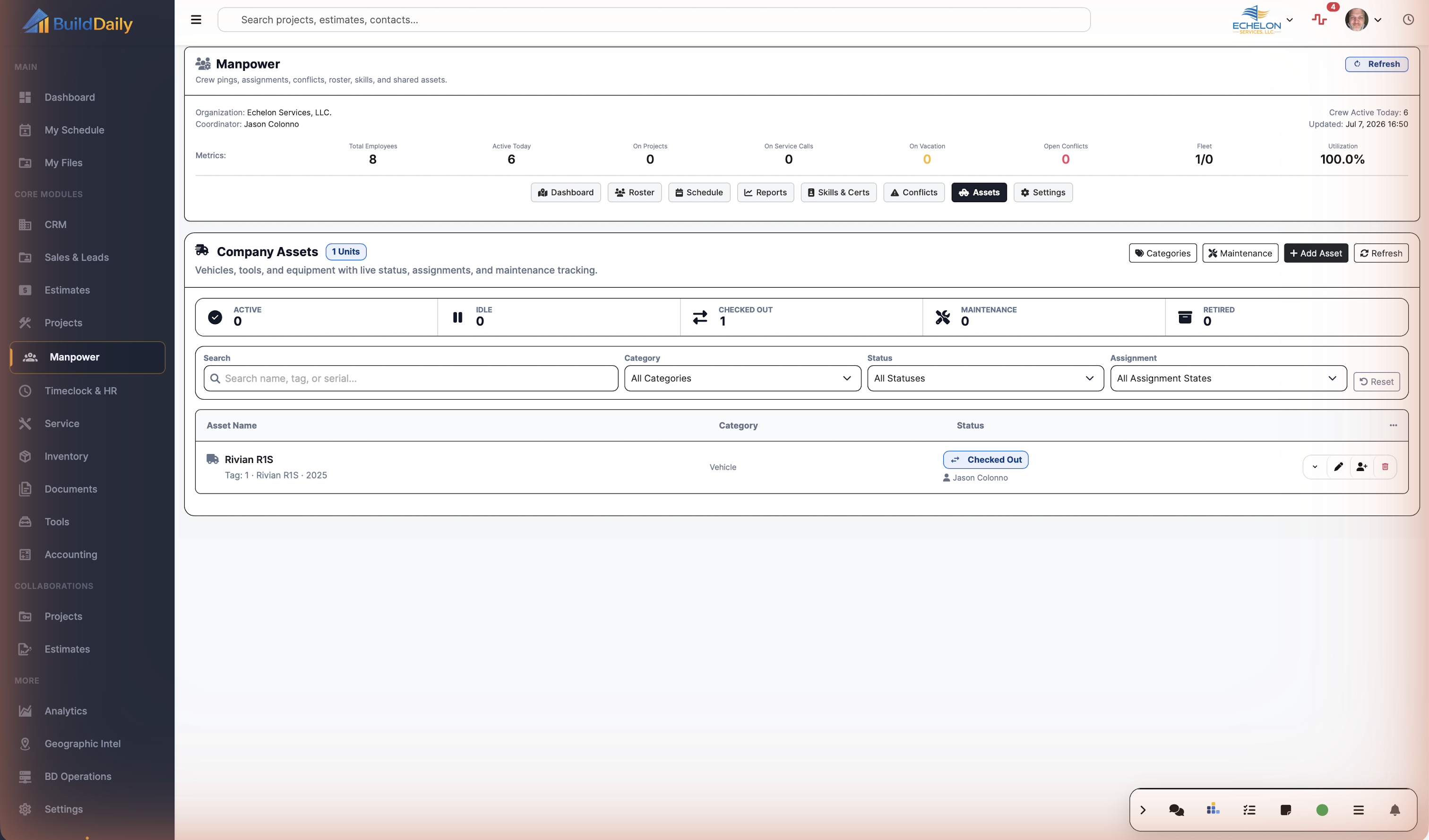
Assigned assets and maintenance
Assigned assets, maintenance, usage, files, and responsible users stay visible.
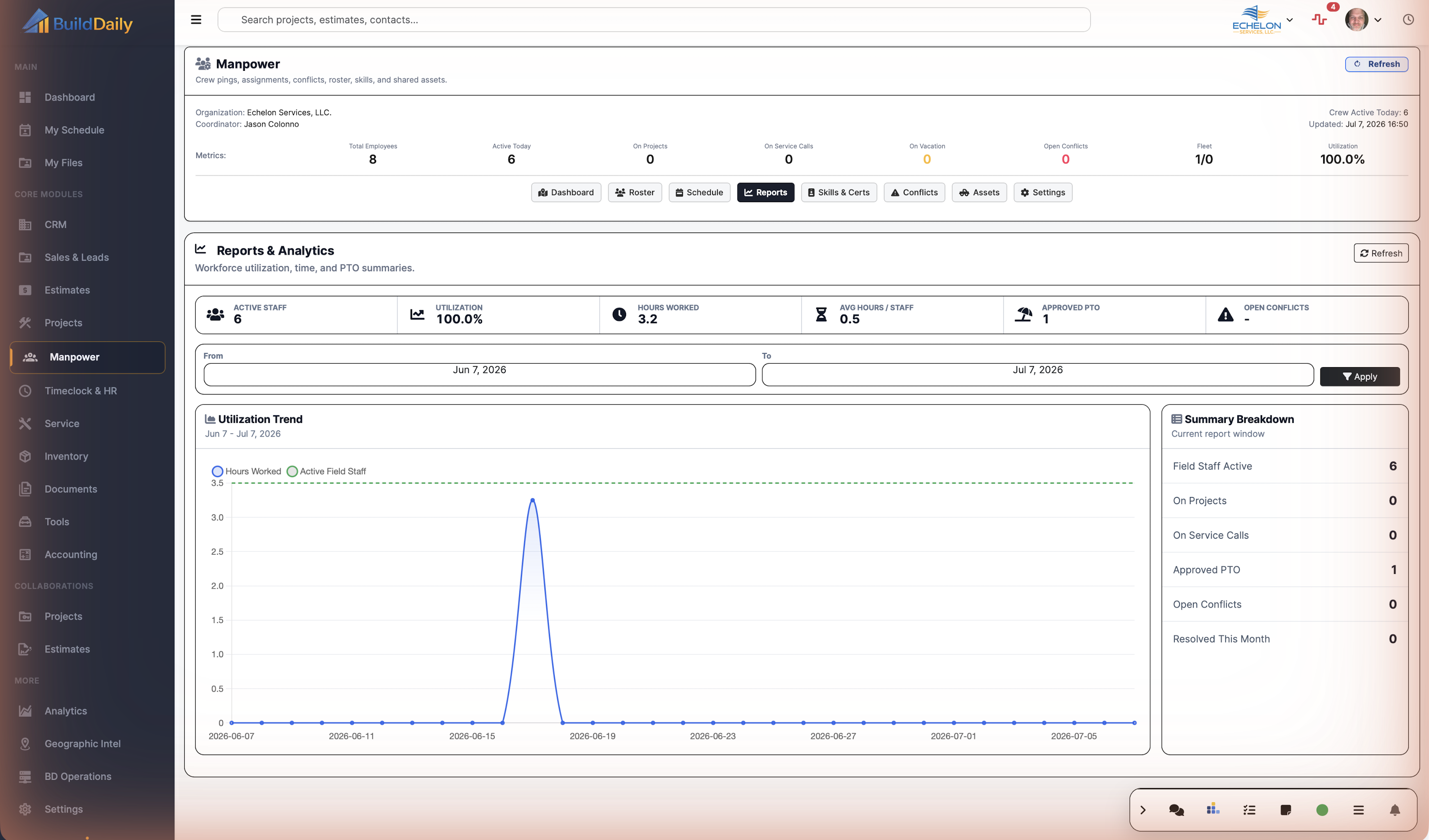
Manpower reporting settings and live updates
Reports, settings, API access, and live updates.

What operations can decide from Manpower

Crew Planning

Build the week around real jobs, service work, estimates, and overhead, then move assignments when the field plan changes.

Conflict Control

Review overlaps, overloaded supervisors, open conflicts, and spikes before the wrong person gets sent to two places.

Crew Qualifications

Keep roles, supervisors, active status, skills, certifications, licenses, assets, and maintenance records current enough to trust the schedule.

Crew questions the office needs answered fast

What You Need How Build Daily Handles It
Who is active today? Yes
Dashboard metrics show active employees, the project and service split, vacation, open conflicts, fleet counts, utilization, the map, and active employee rows.
Can the office schedule labor against actual work? Yes
Assignments can be tied to projects, service calls, estimates, overhead work, people, assets, roles, supervisors, start/end times, notes, and status.
Can the week be changed without rebuilding it? Yes
Schedule controls support move, bulk move, copy day/week patterns, undo copy, assignment update, and assignment info for additional shifts.
Can employees see their own assignments? Yes
My Schedule gives employees an assignment-facing view with week and date navigation.
Can double-booking be caught? Yes
Conflict screens show overlapping manpower assignments with status, supervisor/date filters, trend counts, detail modals, and resolve actions.
Can supervisors plan by crew instead of a flat list? Yes
Roster groups field personnel under supervisors and shows active counts, roles, status, current job, contact details, and profile actions.
Can credentials stay visible to operations? Yes
Skills, certifications, and licenses can be created, edited, filtered, assigned to employees, uploaded, downloaded, and managed from the workforce area.
Can company assets be planned with labor? Yes
Assets track status, category, assignment, maintenance programs, maintenance records, files, usage logs, and timelines, shared between service and manpower.
Can non-project labor be planned? Yes
Overhead codes let operations plan shop, training, PTO, or office labor without charging it to a job.
Can utilization be reviewed later? Yes
Reports summarize active field staff, project work, service work, PTO, open and closed conflicts, and utilization trends.

A crew day from map check to conflict cleanup

1

Review the day from the command board

Operations checks active people, the project and service split, utilization, open conflicts, the map, and recent pings before changing the plan.

2

Update the Roster and Qualifications

The planner confirms active workers, supervisors, roles, current jobs, skills, certifications, and licenses so assignments are based on current information.

3

Place Assignments on the Schedule

People and assets are assigned to projects, service calls, estimates, or overhead work with role, supervisor, start/end time, notes, and assignment status.

4

Move the plan when the field changes

When a job slips, a service emergency lands, or a foreman changes crew coverage, the planner moves, bulk moves, copies, or undoes blocks instead of rebuilding the whole week.

5

Clear conflicts before dispatch

Conflict review catches overlapping assignments and lets the office resolve rows before the wrong person or asset is promised twice.

6

Review Utilization and Coverage

Reports let operations look back at active field staff, the project and service split, PTO, open and closed conflicts, and utilization trends.

The desk by labor task

Planning and schedule

Dashboard The main board with metrics, map layers, recent pings, active employee rows, date navigation, and quick access to planning tabs.
Schedule Crew schedule with search, date controls, hourly/daily/weekly/monthly views, assignment creation, refresh, move, bulk move, copy, and undo controls.
My Schedule Employee-facing schedule view for the user's own assignments and week navigation.
Reports Utilization, time, PTO, active field staff, the project and service split, open and closed conflicts, and summary breakdowns.

People and qualifications

Roster Company workforce list with supervisors, active employees, roles, current assignment, status, contact details, filters, profile expansion, and edit actions.
Skills and Certs Org catalog for skills, certifications, and licenses with type/status filters, upload/download paths, employee skill assignment, and license management.
Conflicts Overlapping assignment log with trend counts, date/status/supervisor filters, conflict detail, and resolution actions.
Settings Default shift behavior, weekend/holiday handling, assignables, overhead codes, and module configuration.

Assets and shared equipment

Assets Company assets shared between manpower and service, with status, category, assignment state, detail, files, and actions.
Categories Asset categories for vehicles, equipment, tools, and other shared resources.
Maintenance Maintenance programs and maintenance records that tell operations whether an asset is ready for the field.
Usage and timeline Asset usage logs, event history, assignment timeline, compact/detail views, and file history.

When the field changes, this is what gets moved

Project Crew Week

  • Check dashboard utilization and open conflicts before filling the week.
  • Assign foremen, apprentices, technicians, and required assets to the project.
  • Use roster and skills records to confirm the crew can actually perform the work.
  • Move or bulk move assignments when the schedule shifts.

Service Emergency Stealing Project Labor

  • Place the service call on the manpower schedule instead of hiding it in a side conversation.
  • Use conflicts to see whether the technician is already committed to a job.
  • Move the project assignment or resolve the conflict before dispatch.
  • Keep the project/service labor split visible to operations.

Credential Sensitive Work

  • Review the skills/certifications/license catalog before assigning specialized labor.
  • Update employee skill records when a certification or license changes.
  • Keep certifications and licenses on the roster so staffing decisions are not made from memory.

Overhead and Shop Work

  • Use overhead codes for shop time, training, admin work, or non-project labor.
  • Keep non-billable labor visible instead of burying it in an empty job slot.
  • Review utilization and reports to see how much labor is leaving the job schedule.

Asset Status

  • Track asset status, category, assignment, files, maintenance programs, maintenance records, usage logs, and timelines.
  • Avoid assigning a vehicle, lift, or tool that is already checked out, under maintenance, or tied to another crew.
  • Keep service-shared equipment visible to both manpower and field service planning.

Walk Through See where the crew is before you move the schedule

We will walk through it using the way your company handles the work today.

See It with Your Work