Build Daily

Projects that keep RFIs, field work, money, and closeout tied to the job

After award, a contractor needs answers fast: who owes the RFI response, which drawing set is current, whether the submittal reviewer opened the packet, which extra work is signed and billable, and whether closeout is already being built. Build Daily keeps those answers on the project list and Work On page instead of forcing the office to rebuild the job story from email, spreadsheets, and file folders.

Follow the job the way a PM actually runs it

Project list: find the jobs that need a call today

The list is where a PM or executive sees which jobs are quiet and which ones are about to become a problem. Late RFIs, missing daily reports, open change work, open punch, crew activity, missed safety and toolbox talks, compliance risk, and favorites show up before anyone has to open three different reports.

  • Open Work On from the row when a job needs attention
  • See late RFIs, open COs, punch, missing dailies, crew activity, safety, toolbox talks, and compliance gaps
  • Filter and expand rows when leadership needs to review active jobs without interrupting every PM
Project list with active project rows
The project list shows which jobs deserve attention before the next owner or GC call lands.

Work On: the page a PM actually lives in

Work On is the job page after award. It carries the project number, client, location, PM, super, phase, blockers, the estimate it came from, weather, map, and the tabs the team opens all day. It is built for the moment someone asks, 'where does this job stand?'

  • Keep project identity, phase, client, contacts, team, map, and blockers in front of the PM
  • Use the overview as the handoff point from estimate to active project
  • Jump into documents, management logs, field work, financials, schedule, closeout, team, and settings from the job page
Project Work On header
Work On keeps the job page and project navigation together for the PM, super, accounting, and leadership.

Documents: Current Files Without Inbox Hunting

Files, drawings, specifications, directives, and correspondence stay with the project records that use them. A PM can find the current drawing set, spec section, directive, RFI backup, owner email, or external package material without guessing which inbox or folder has the latest version.

  • Manage project folders, protected files, uploads, previews, downloads, and package material
  • Track drawing sets, sheet logs, revisions, specs, directives, and correspondence
  • Keep official documents beside RFIs, submittals, field records, financials, schedule, and closeout
Project documents and file manager
Project files and document logs keep job backup attached to the work that cites it.

RFIs and logs: who owes the answer, and by when

Management logs keep formal job records out of side spreadsheets: RFIs, submittals, project RFPs, meetings, permits, and inspections. RFIs carry the question, spec/drawing reference, due date, recipient, response count, PDF, and ball-in-court so the PM can chase the answer with a record behind it.

  • Create RFIs with the question, reference, due date, recipient, status, PDF, and response trail
  • Keep meetings, permits, inspections, and management records attached to the job
  • See which official logs are blocking work before the field has to ask twice
Project RFI log
RFI rows show what was asked, where it applies, who owes it, when it is due, and what happened next.

Submittals: cover sheet, review link, opened status, next move

Submittals need more than a PDF upload. Build Daily tracks the item, revision, generated cover sheet, compiled review packet, reviewer, sent distribution, opened status, ball-in-court, decision, release state, and activity history so the PM knows whether the package is moving or just sitting.

  • Generate cover sheets and compile review packets from the project record
  • Send reviewers a trackable review workflow with delivery and opened status
  • Release approved material without losing the revision and decision history
Submittal log with reviewer status
The submittal log shows whether the packet is ready, who has the ball, whether it was sent and opened, the decision, and release.

Project RFPs: buy out scope without portal friction

Award does not mean buyout is done. PMs can send project RFPs by scope, invite vendors and subs, track who downloaded, opened, acknowledged, no-bid, or sent a quote, see quote amounts, and share a secure planroom where vendors review files and upload pricing without a Build Daily account.

  • Send buyout RFPs by scope with bidders, contacts, due dates, files, and quote amounts
  • Track who opened, downloaded, acknowledged, no-bid, and submitted pricing
  • Give vendors a no-login planroom for file review, response status, and quote upload
Project RFP buyout list
Project RFPs show coverage, bidder status, no-bids, quote amounts, and remaining buyout gaps.

Field records: daily facts while they are still fresh

The Field section gives supers a place to record what actually happened: daily reports, manpower, lookahead work, safety incidents, deliveries, toolbox talks, punch items, and T&M tickets. The office gets current field proof instead of chasing late texts, photos, and end-of-week notes.

  • Capture weather, manpower, work completed, work in progress, safety notes, and finalized daily reports
  • Record lookahead work, deliveries, toolbox talks, safety, punch, and field commitments
  • Use Manpower to see who is scheduled, where labor is thin, and how field coverage lines up with timeclock
Project field and manpower panel
Field records connect daily job facts with crew coverage and where labor is short.

Change work: signed, priced, packaged, billed

Extra work falls apart when the field has proof, the PM has pricing, and accounting has neither. Change orders and T&M tickets keep scope, labor, material, subcontractor backup, markup, attachments, signer status, review status, packet status, and whether it is ready to bill on the project.

  • Manage RFCs and COs with scope, status, ball-in-court, pricing, backup, packets, and approvals
  • Move T&M tickets from field work to signature, pricing, packet, and billing
  • Keep approved and pending change work close to pay applications and A/R decisions
Change order pricing with labor and material lines
Change order pricing shows the backup accounting needs before extra work turns into receivable work.

Pay apps, A/R, and payment links: help the job get paid

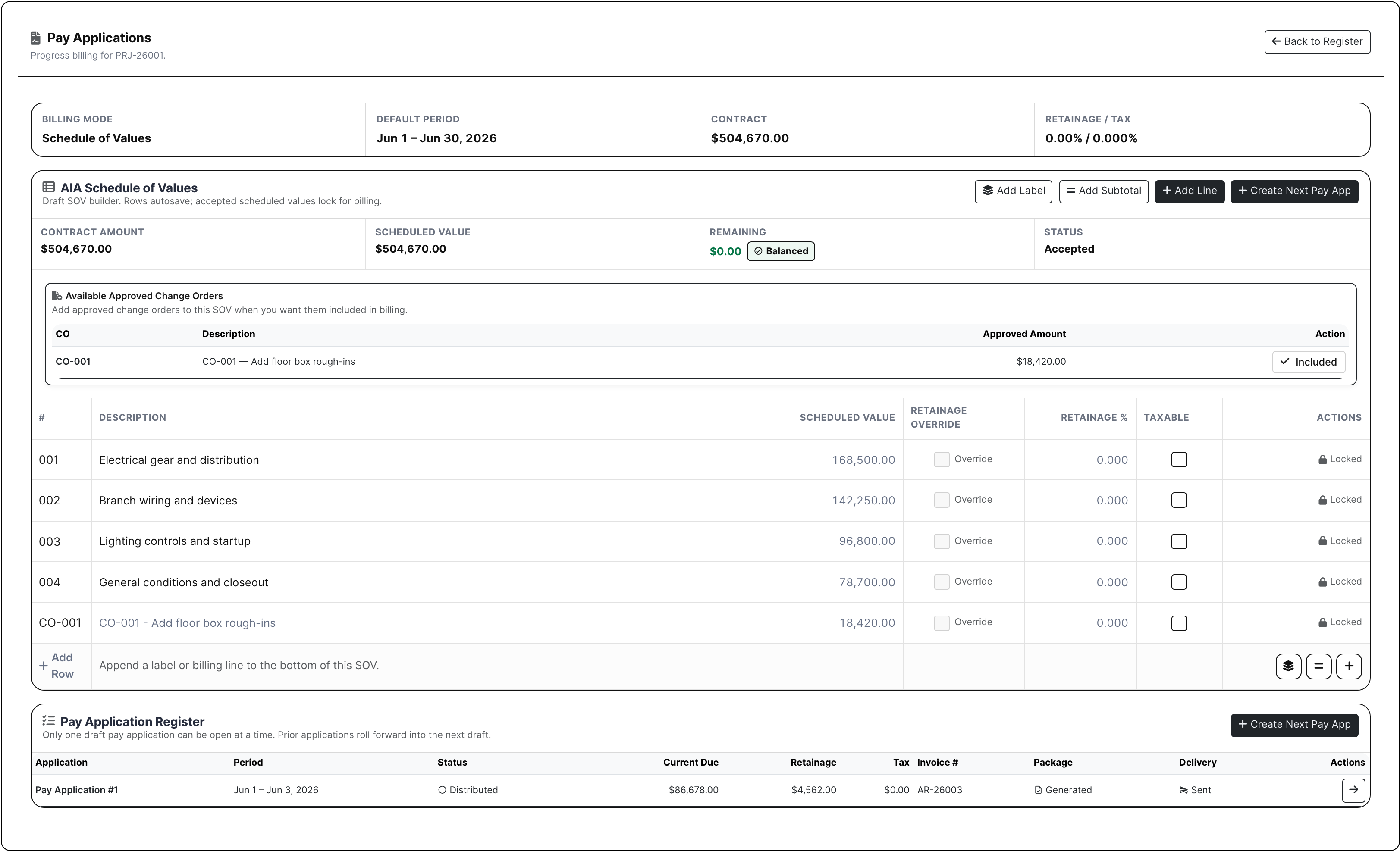
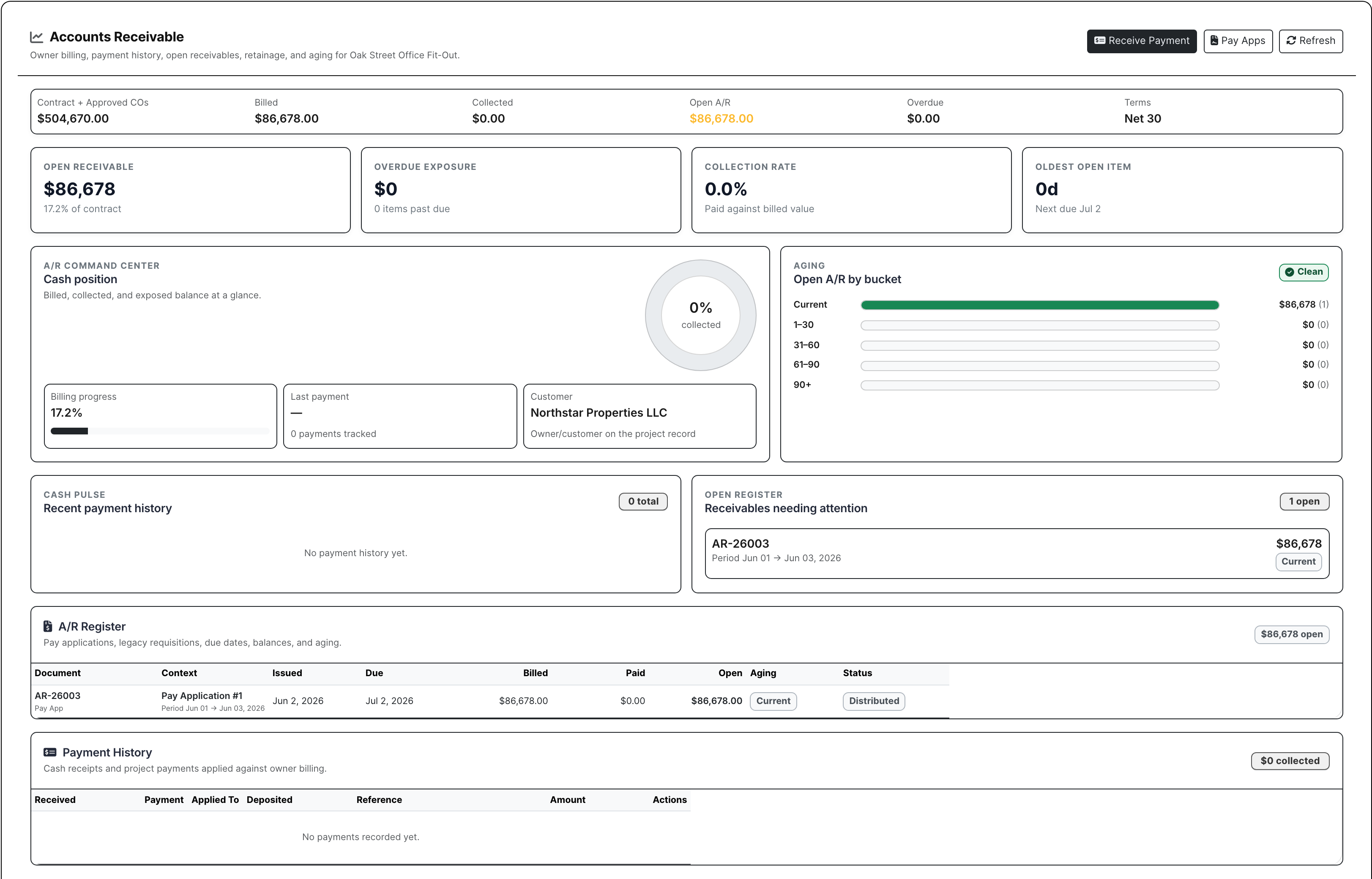
Financials connect SOV billing, approved change orders, pay application packages, invoice numbers, retainage, A/R status, payment history, and customer payment actions. When Stripe payment links are enabled, invoice emails can include a direct payment link instead of sending accounting into another round of manual follow-up.

  • Build AIA-style schedules of values and roll approved COs into billing
  • Track pay app status, package generation, delivery, invoice number, retainage, and current due
  • Keep open balance, aging, payments, receive-payment actions, and Stripe payment links tied to the project
Project SOV and pay application register
The SOV and pay app register shows what is being billed, what has been approved, and what package is going out.

Schedule: the job plan beside the work

The schedule belongs next to RFIs, submittals, field records, and change work because those records change the plan every week. Build Daily gives the PM and super a working schedule with grid, Gantt, dependencies, baseline, lookahead, workdays, health, critical path, calendar, and print controls.

  • Manage tasks in grid, Gantt, table, board, timeline, and calendar views
  • Use baseline, lookahead, workdays, schedule health, and critical path controls
  • Print or export schedule views when the owner, GC, or field team needs a clean update
Project schedule grid and Gantt
Schedule keeps the plan in the same project where the PM sees the records that can move it.

Closeout: build the final book before the last week

Closeout should not start with a blank Word document and a folder full of mysteries. Build Daily assembles the final package from project records: cover sheet, warranty letters, O&M material, as-builts, section breaks, custom deliverables, status, and generated output.

  • Generate closeout packages from records already captured during the job
  • Build cover sheets, warranty letters, O&M items, as-builts, and custom deliverables
  • Track package progress while missing items are still fixable
Project closeout package builder
Closeout turns the project record into the final handoff package instead of a last-week rebuild.

Team and workflows: route work the way this job runs

Every project has its own team, owner contacts, vendor reviewers, distribution expectations, numbering rules, and submittal routing. Team list, distribution, module settings, and workflow setup keep those decisions attached to the project instead of relying on someone to remember how this owner wants things sent.

  • Manage team roles, distribution lists, project contacts, and outside recipients
  • Set project-specific module behavior, numbering, routing, and review workflows
  • Keep submittal review and release processes consistent without copying instructions by hand
Project workflow setup
Workflow setup captures how this project wants submittals, review records, numbering, and routing handled.

What is in it

Project foundation

Set up the job the office and field both work from.

Project identity and team Track number, customer, site, PM, superintendent, contacts, team access, tags, and status.
Workflow setup Choose project controls, numbering, review modes, defaults, and folder structure.
Files, drawings, and specs Organize job files, drawing sets/sheets, specification sets/sections, and distribution.
Activity, notes, and correspondence Keep internal context and formal communication attached to the job.

Management controls

Run the logs that track decisions and who owes what.

RFIs Create, assign, send out, answer, and close RFIs, and see which are overdue.
Submittals Build the register and track revisions, reviewers, ball in court, decisions, and release.
Meetings and directives Track meeting series, attendees, business items, directives, correspondence, and follow-up.
Permits and inspections Track authority, dates, results, required items, files, and corrective actions.

Field records

Capture what happened on site and what the next shift needs.

Daily reports Record weather, crew, subcontractors, work performed, delays, visitors, notes, and files.
Lookaheads and schedule Plan tasks, dependencies, assignments, dates, links, scenarios, and near-term commitments.
Safety and toolbox talks Track incidents, topics, attendance, signatures, files, and follow-up.
Punch, deliveries, and manpower Track punch items, deliveries, field assignments, and completion photos.

Commercial controls

Connect scope changes and billing to the job record.

Change orders Develop scope, backup, revisions, pricing, review links, status events, and customer value.
T&M tickets Capture labor, material, equipment, subcontractor cost, signatures, markup, and generated backup.
Pay applications and SOV Build schedule of values, application lines, attachments, review, workflow, and payment history.
Subcontracts, requisitions, and A/R Track subcontractor scope, compliance, pay requests, owner receivables, and payment context.

Closeout and outside access

Finish the job with every required document turned over.

Closeout register Define required items, responsible party, due state, files, and acceptance.
Closeout packages Build closeout packages from the records and documents already on the job.
Client and partner portals Share selected logs, files, and the schedule with the owner and partners.
Distribution history See who received which document, and when.

Screens from the actual project workflow

Project list with Work On rows and job flags
The project list flags the jobs that need a call today: late RFIs, open COs, punch, missing daily reports, crew activity, toolbox/safety, compliance, and Work On actions.
Project Work On header with overview and navigation
Work On gives the PM the job identity, client, location, team, blockers, current pulse, and the tabs needed to run the work.
Project file manager
Project files show the actual folder structure, protected backup, internal material, and external package files tied to the job.
Project drawing log
Drawing logs keep issued sets, sheets, revisions, verification, and downloads in the same project where RFIs and submittals reference them.
Project RFI log
RFIs show the question, spec/drawing reference, due date, response count, ball-in-court, and actions a PM needs to chase the answer.
Project submittal log with review status
Submittals show the full review path: generated cover sheet, packet, distribution, who opened it, who has the ball, and release state.
Project RFP buyout tab with vendor status and quote amounts
Project RFPs help PMs buy out remaining scope with invited vendors, opened/downloaded status, no-bids, quote amounts, and coverage gaps.
No-login project RFP planroom for vendors
The public RFP planroom lets vendors review files, acknowledge, no-bid, or submit pricing from a secure link without creating a Build Daily account.
Project daily reports tab
Daily reports capture what happened in the field while it is still fresh: weather, manpower, work completed, work in progress, and final status.
Project manpower panel
Manpower shows who is scheduled on the job, where field coverage is thin, and how the crew picture connects to timeclock/manpower work.
Project change order log with approved and review items
Change orders show what is priced, what is approved, who still has it, and which dollars are still under review.
Change order pricing with labor and material lines
Change order pricing breaks extra work into labor, material, subcontractor cost, markup, attachments, review state, and packet-ready totals.
Project T&M ticket log
T&M tickets keep field extra work moving from performed to signed, priced, packaged, and ready to bill.
Project AIA-style schedule of values and pay application register
Pay applications carry the SOV, approved COs, retainage, invoice number, current due, package state, and delivery trail.
Project accounts receivable panel
A/R shows what has been billed, what is open, what is aging, what was paid, and where payment actions or Stripe links fit.
Project schedule with grid and Gantt
The schedule puts task rows, Gantt bars, dependencies, baseline, lookahead, workdays, critical path, calendar, and print controls beside the job.
Project closeout package builder
Closeout builds the final book from project records: cover sheet, warranty letters, O&M items, custom deliverables, section breaks, and generated output.
Project workflow setup for submittals and reviews
Workflow setup defines project-specific routing, numbering, review expectations, and submittal rules before packets start moving.

Who uses the project page during a real job

Project Managers and Coordinators

Answer the daily questions without rebuilding the story: which RFI is late, which submittal reviewer opened the packet, which buyout scope still needs quotes, which CO is stuck, and what package goes to the owner next.

Supers and Field Leads

Record the job while the work is happening: daily reports, crew counts, lookahead commitments, safety, deliveries, toolbox talks, punch, T&M tickets, and the schedule.

Accounting and Executives

See what is signed, priced, approved, billed, paid, aging, or still waiting on backup: change orders, T&M tickets, SOV/pay apps, invoices, retainage, A/R, and payment-link actions.

Vendors, Subs, and Reviewers

Open the secure link, review the files, acknowledge/no-bid/quote, or complete a submittal review without being forced into a full internal Build Daily account.

Questions a project page has to answer

What You Need How Build Daily Handles It
Which jobs need attention today? Yes
Project rows show Work On actions, favorites, phase and status, client, PM and super, late RFIs, open COs, punch, missing daily reports, crew activity, toolbox and safety, and compliance gaps.
Where is the actual job page? Yes
Work On keeps the job number, customer, location, PM and super, pulse, blockers, map, weather, the estimate it came from, and project navigation together.
Where are the current project files? Yes
Project files handle folders, uploads, previews, downloads, protected files, internal backup, external package material, and project-specific file actions.
Which drawing or spec version are we using? Yes
Drawing/spec logs track issued sets, sheet logs, revisions, specs, directives, correspondence, verification, and downloadable history.
Who owes the RFI answer? Yes
RFIs carry the official question, drawing/spec reference, recipient, due date, response count, distribution, ball-in-court, PDF, and closeout action.
Did the reviewer open the submittal packet? Yes
Submittals track item, revision, generated cover sheet, compiled packet, reviewer workflow, distribution, opened status, decision, release state, and history.
What scopes still need buyout quotes? Yes
Project RFPs build scope packages after award with invited vendors/subs, opened/downloaded status, no-bids, quote amounts, and coverage gaps.
Can vendors quote without creating an account? Yes
The public RFP planroom gives vendors a secure no-login page with the files, project details, acknowledge and no-bid buttons, response status, and quote upload.
Where do meetings, permits, and inspections live? Yes
Management records keep agencies, permit status, inspection results, meeting notes, dates, attendees, and follow-ups attached to the job.
Did the super finish the daily report? Yes
Daily reports capture date, weather, manpower, work completed, work in progress, safety notes, inspection status, and final report state.
What is happening in the field this week? Yes
Lookahead, safety, deliveries, toolbox talks, and punch lists carry owners, due dates, assignments, status, exceptions, and field commitments.
Who is scheduled on this job? Yes
Manpower shows who is scheduled, field coverage, crews, where labor is short, and how it ties to timeclock.
Is the extra work approved or still floating? Yes
Change orders track RFC/CO scope, status, reviewer ball-in-court, labor/material/sub pricing, markup, attachments, packet state, and approvals.
Is the T&M work signed, priced, and billable? Yes
T&M tickets track field extra work, labor, materials, signer status, pricing status, packet status, and whether the ticket is ready to bill.
Can we build the pay app from the project? Yes
AIA-style billing builds schedules of values, includes approved COs, tracks current due, retainage, invoice number, package generation, delivery, and review.
What has been billed and what is still unpaid? Yes
A/R shows project invoices, open balances, paid balances, aging, payment status, receive-payment actions, and Stripe payment links where enabled.
What subcontractor exposure sits on this job? Yes
Subcontractor records keep commitments, billing, vendor and sub relationships, what is owed on the job, and supporting documents close to the job.
Does the schedule reflect the work changing around it? Yes
Schedule provides task grid, Gantt, dependencies, baseline, lookahead, workdays, health, critical path, calendar, and PDF/print controls.
Can closeout start before the last week? Yes
Closeout builds packages from cover sheets, warranty letters, O&M items, as-builts, custom deliverables, section breaks, and generated output.
Who gets project updates? Yes
Team and distribution manage project roles, contacts, outside recipients, distribution lists, sent/opened status, and who receives project records.
How does this project want records routed? Yes
Settings and workflows control module behavior, submittal setup, numbering, routing, review expectations, and project-specific access behavior.

A project day in Build Daily

1

Morning Project Check

The PM opens the project list and sees which jobs have late RFIs, missing daily reports, open change work, open punch, compliance gaps, and crew activity before the phone starts ringing.

2

Formal Record Work

Inside Work On, the PM handles drawings, specs, directives, correspondence, RFIs, submittals, buyout RFPs, meetings, permits, and inspections from the same job.

3

Field Update

The super records manpower, weather, work completed, lookahead work, deliveries, toolbox talks, safety, punch, and T&M tickets while the details are still fresh.

4

Money Review

The PM and accounting check COs, T&M ticket pricing, SOV/pay apps, invoices, retainage, A/R, payment links, and subcontractor exposure before anything gets missed.

5

Owner Update and Closeout

Schedule updates, distribution, workflow settings, warranty letters, O&M items, and generated closeout packages use the project record that has been built during the job.

The project tabs, translated into contractor work

Project list and Work On

Project rows Open the job from its row and see the number, client, phase, PM and super, favorite, and whether anything needs action.
Attention flags Catch late RFIs, change orders, punch, missing daily reports, compliance gaps, and recent activity before a project status meeting.
Portfolio filters Filter by status, phase, owner/team, favorites, and risk when leadership needs the job picture without pulling every PM into a call.

Work On overview

Project header Start with the job number, customer, location, phase, status, map, weather, team, contact, and the tabs that run the job.
Summary Review pulse, blockers, the estimate it came from, current records, and the handoff details the PM needs when the job opens.
Project settings Set status, phase, module behavior, tags, permissions, numbering, and workflow defaults for how this specific project should run.

Documents

Files Organize project folders, internal backup, protected files, previews, downloads, and package material where the PM can find it.
Drawings Know which drawing set and sheet revision is current before an RFI, submittal, or field question depends on it.
Specifications Keep spec sections and versions with the project so reviewers and PMs are not quoting from the wrong book.
Directives Record owner/architect directives with dates, status, description, and backup so scope changes are not buried in email.
Correspondence Preserve project emails and letters with contacts, subject, body, dates, and files when the job needs a paper trail.

Management

RFIs Ask the official question, reference the drawing/spec, set the due date, chase the response, generate the PDF, and close the record.
Submittals Generate cover sheets, compile review packets, send the review link, see opened status, capture decisions, and release approved material.
RFPs Buy out remaining scopes after award with vendor/sub invites, quote status, opened/downloaded/no-bid tracking, quote amounts, and no-login planrooms.
Meetings Keep agendas, notes, attendees, dates, and follow-ups tied to the job instead of scattered across meeting invites.
Permits Track agency, permit number, status, expiration, contacts, and related inspections before a permit issue slows the field.
Inspections Record inspector, result, notes, correction items, and dates so a failed or conditional inspection gets written down.

Field

Daily Reports Capture weather, manpower, inspection status, work completed, work in progress, safety topic, and whether the report is finalized.
Lookahead Plan the next work window with activities, owners, due dates, status, and commitments the super and PM can both see.
Safety Record incidents, near misses, corrective action, severity, company/person involved, and status while the facts are still clear.
Deliveries Track vendor, submittal link, expected/received dates, material state, photos/files, and exceptions before material problems become schedule problems.
Toolbox Talks Document required topics, custom topics, crew acknowledgement, notes, and finalized talks for jobsite compliance.
Punchlist Assign punch by category, location, owner, due date, and status so closeout items are not rediscovered at the end.
Manpower See scheduled workers, crew coverage, project assignments, where labor is working, and timeclock hours for the job.

Financials

Change Orders Price RFCs and COs with scope, labor, material, subcontractor backup, reviewers, approvals, packets, and status.
T&M Tickets Move extra work through signature, labor and material detail, pricing, the packet, and billing.
Pay Applications Build AIA-style SOV billing with approved CO inclusion, current due, retainage, package generation, delivery, invoice number, and review state.
A/R Check project invoices, open balance, paid balance, aging, payment status, receive-payment action, and Stripe payment-link support where enabled.
Subcontractors Review subcontractor commitments, billing, what each vendor and sub is owed, and job cost before the numbers drift.

Schedule and closeout

Schedule Work from task grid, Gantt, dependencies, baseline, workdays, health, critical path, calendar, and PDF/print controls.
Schedule Lookahead Turn the schedule into near-term commitments with owners, dates, status, and notes for the field.
Closeout Build cover sheets, warranty letters, O&M items, as-builts, deliverables, section breaks, status, and generated packages.

Team and workflows

Team List Define project roles, contacts, primary flags, access, field permissions, and owner/vendor/sub participation.
Distribution Manage who receives project records, when they were sent, whether they opened them, and what message history exists.
Module Settings Turn on the controls this project needs and keep irrelevant project settings out of the way.
Workflow Setup Set submittal routing, numbering, review setup, approval expectations, and project-specific process defaults.

How work moves from award to closeout

Award Becomes the Job Page

  • Carry the customer, location, scope, estimate, files, and team into the project.
  • Open Work On when the PM needs to work the job. The read-only profile is there for everyone else.
  • Give PMs, supers, accounting, executives, vendors, and owner reviewers the right way into the same project.

Official records stay with the work they affect

  • Keep drawings, specs, directives, correspondence, RFIs, submittals, project RFPs, meetings, permits, and inspections on the job.
  • Use no-login planrooms and review links when vendors or reviewers need access without internal accounts.
  • Track sent/opened status so the PM can tell whether the package actually got attention.

Field work becomes backup accounting can use

  • Daily reports, manpower, lookahead, safety, deliveries, toolbox talks, punch work, and T&M tickets give the office current field proof.
  • T&M tickets and change orders carry labor, material, signer, pricing, packet, and billing status into project financials.
  • Accounting can see which extra work is ready to invoice and which work still needs signature, pricing, review, or backup.

Billing and closeout use the record already built

  • SOV and pay apps, approved change orders, A/R, Stripe payment links, subcontractor billing, and invoices stay tied to the job.
  • Schedule and closeout use the same project record instead of rebuilding final packages from scratch.
  • Warranty letters, O&M items, as-builts, cover sheets, and generated closeout packages come from project data captured during the job.

Walk Through Projects that keep RFIs, field work, money, and closeout tied to the job

We will walk through it using the way your company handles the work today.

See It with Your Work