Build Daily

Support tickets that keep the problem and the proof together

When a PM, service manager, dispatcher, or office admin hits a problem in Build Daily, they open a support ticket instead of sending a side text or an email that gets buried. The ticket carries the module, priority, screenshots, replies, owner, due date, and next step, so you know what support is waiting on.

How a product issue moves from contractor report to support action

Report the issue from the page where it happened

A support request can be opened from the app with a subject, message, category, priority, module key, and attachments. That matters when the issue is tied to a service invoice, public review link, manpower map, or other screen the user was already working in.

  • Capture the issue while the person still remembers what happened
  • Attach screenshots, PDFs, logs, or other backup
  • Keep the same thread visible when support replies or asks for more detail
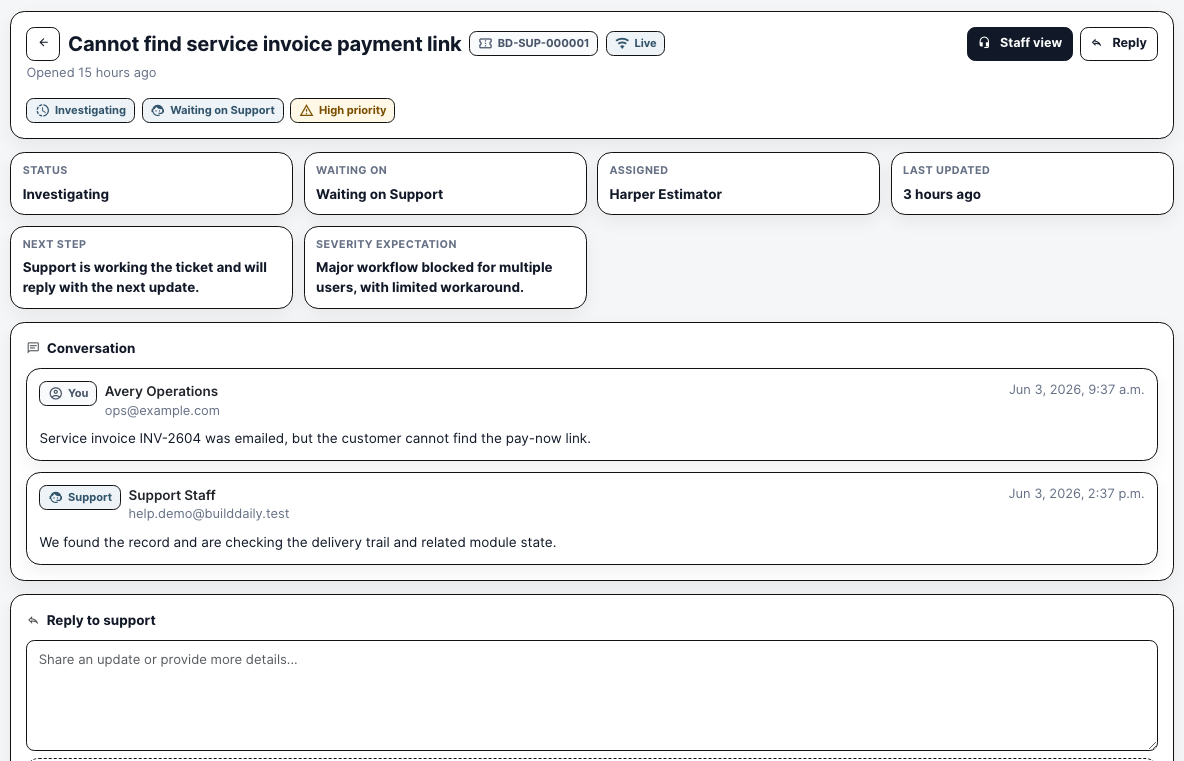
Customer support ticket thread
The customer ticket keeps status, owner, severity, next step, replies, and activity in one visible trail.

Support staff work from queues instead of a loose inbox

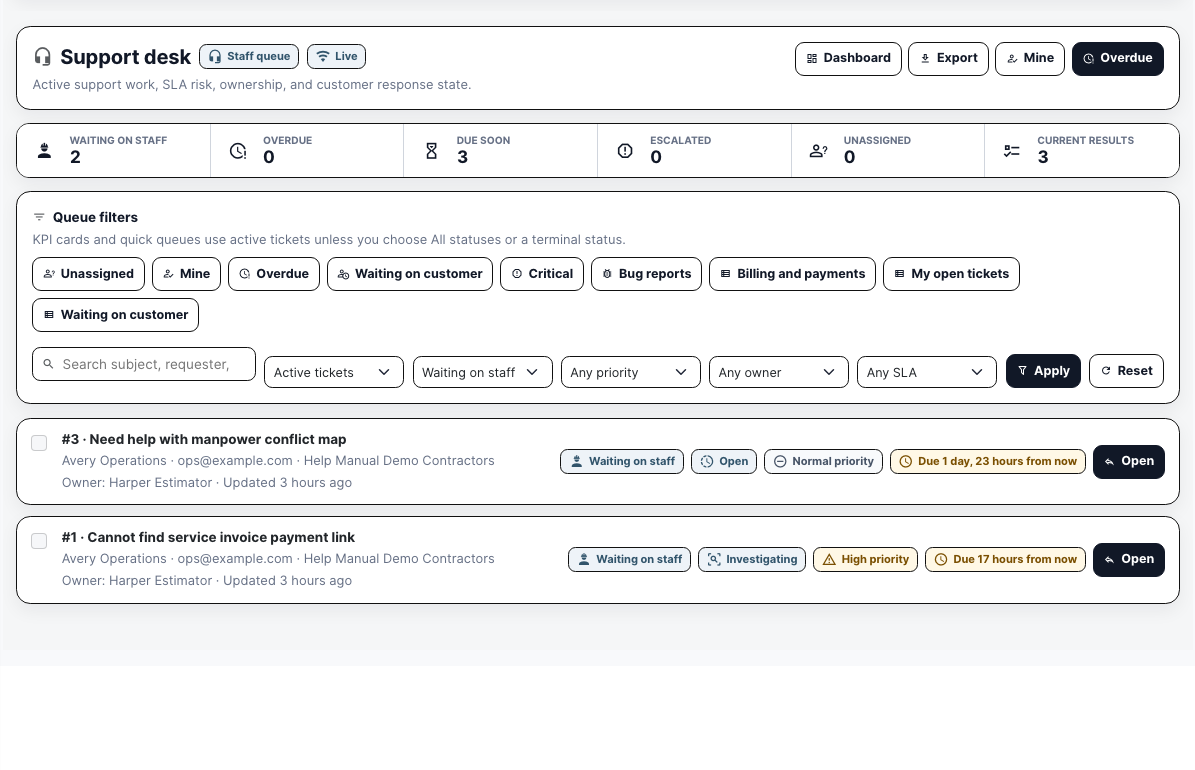
The staff desk filters tickets by active status, who it is waiting on, priority, owner, SLA due time, saved views, and search. A support lead can see what is waiting on staff, what is due soon, and which tickets need an answer before the day gets away.

  • Separate tickets waiting on staff from tickets waiting on the customer
  • Use saved queues such as Mine, Overdue, Billing and payments, or Waiting on customer
  • Open the ticket row with requester, organization, owner, priority, status, and due window already visible
Support desk queue
The queue turns incoming requests into rows you can assign, with response due times in view.

The ticket detail is where support decides what happens next

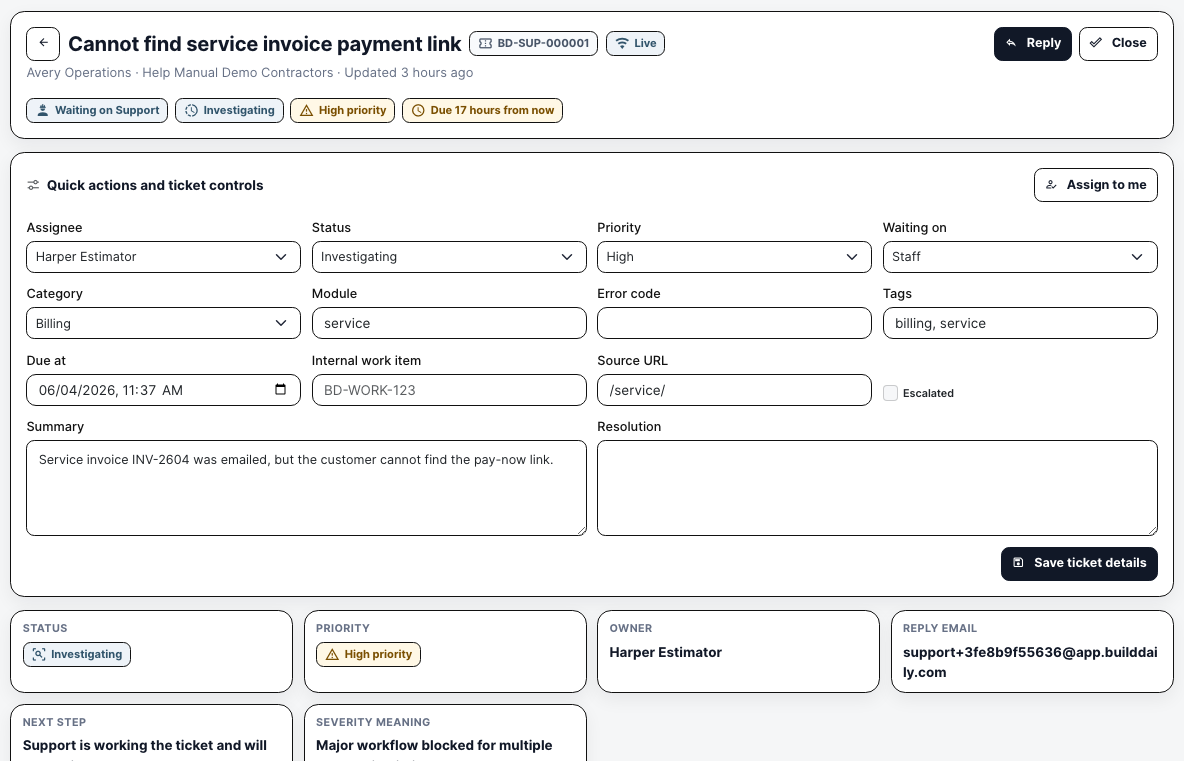
On the staff side, support sets the owner, priority, status, module, page link, tags, due date, summary, resolution, and escalation. Those facts stay with the thread.

  • Assign or take ownership when a ticket needs a clear owner
  • Change status and waiting state as the issue moves
  • Record the page link, module, tags, due date, summary, and escalation
Support ticket controls
Ticket controls put triage in writing so nobody has to remember it.

Replies, internal notes, and attachments stay in the same record

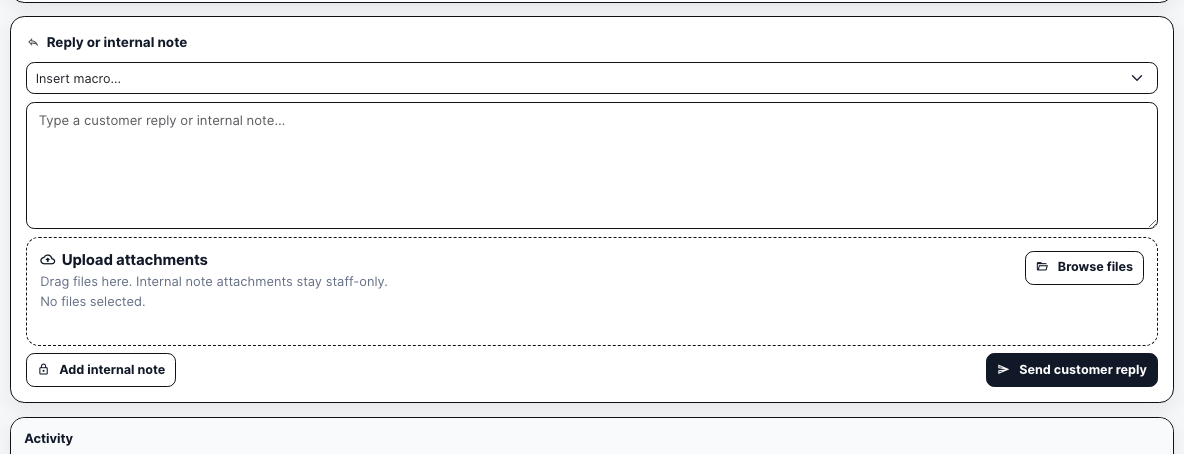
Support can send the customer a reply, add a staff-only note, insert a saved macro, and upload backup from the same reply panel. The customer sees the reply thread. Staff keep their investigation notes and backup on the ticket.

  • Send customer-facing replies from the ticket
  • Add internal notes that are not emailed to the requester
  • Attach files to the reply or internal note
Support reply controls
Reply controls separate customer communication from internal troubleshooting without splitting the record.

What is in it

Customer support

Keep the problem, the screenshots, and the conversation together.

My tickets Open, search, and follow up on your company's support requests.
Screenshots and details Attach files, screenshots, the page you were on, and steps to reproduce.
Threaded replies Customer and support replies stay on one ticket.
Status and satisfaction Track open, waiting, resolved, closed, and satisfaction state.

Support operations

Give staff enough context to own and resolve the problem.

Desk queue Filter by status, priority, module, assignee, SLA, and saved view.
Assignment and presence Show ownership and active support presence on a ticket.
Macros, routing, and SLA Use supported routing rules, response macros, calendars, and escalation policy.
Events and delivery Track each reply, whether it was delivered, and any that bounced.

Actual Support screens with sample tickets

Support desk queue with active tickets and SLA filters
The support desk shows active requests, staff/customer waiting state, priority, due windows, saved queues, owners, and the ticket rows that need action.
Support staff ticket detail with assignment priority module source URL and summary controls
Staff can set owner, status, priority, waiting state, category, module, source URL, due date, tags, summary, resolution, and escalation state from the ticket detail.
Customer support ticket thread with status owner and conversation
The customer-facing ticket shows status, who support is waiting on, assigned owner, next step, severity expectation, conversation, reply box, attachments, and activity.
Support staff reply area with macro internal note attachments and customer reply actions
The staff reply panel supports macros, customer replies, internal notes, and attachments so the answer and private troubleshooting notes stay on the ticket.

The support decisions this workflow keeps visible

Contractor User

Opens the ticket, explains the problem, attaches screenshots, checks status, replies when support needs more information, and can reopen a closed ticket if the issue is not actually fixed.

Operations or Office Lead

Keeps an eye on open support issues that may block billing, service, project reviews, manpower planning, or other day-to-day Build Daily work.

Support Staff

Owns the queue, sets priority and waiting state, replies to the customer, adds internal notes, escalates when needed, and closes the ticket with the resolution trail intact.

Support questions contractors and staff need answered

What You Need How Build Daily Handles It
Can the user see their own requests? Yes
My Support lists the user's tickets with status, priority, owner, last activity, and customer-facing detail pages.
Can support see what needs action today? Yes
The support desk shows counts for waiting on staff, overdue, due soon, escalated, and unassigned, plus quick queues and filters.
Can the ticket point to the affected part of the app? Yes
Tickets carry module key, source URL, page title, category, tags, error code, and summary fields.
Can screenshots and files go with the request? Yes
Customers and staff can attach screenshots, PDFs, logs, and other allowed files, with download controls on the ticket thread.
Can staff separate public replies from internal work? Yes
The staff reply panel supports customer replies, staff-only internal notes, macros, and attachments.
Can ownership and urgency be controlled? Yes
Staff can assign tickets, assign to self, set status, priority, waiting state, due date, category, tags, and escalation state.
Can a closed issue come back? Yes
Tickets support close and reopen paths; a customer reply on a closed ticket reopens the request and alerts support.
Can support find repeated problems? Yes
The staff view shows the requester's history, related tickets, module, tags, and escalation records.

Why it matters

A billing issue needs more than a subject line

If a customer cannot find a service invoice payment link, support needs the invoice, the page they were on, a screenshot, the delivery trail, priority, and reply history. The ticket carries all of that so nobody has to piece it together from chat.

Waiting State Changes the Next Move

A ticket waiting on staff is an action item for support. A ticket waiting on the customer is a follow-up question. Separating those states keeps both sides honest about who owes the next answer.

Support work can block real contractor work

A stale public review link, invoice issue, or manpower map question can stop billing, owner review, or scheduling. Support makes those blockers visible enough to triage, escalate, and resolve.

From a field problem to a tracked answer

1

Report the Issue

The user opens a ticket, explains what happened, chooses category and priority, picks the module, and attaches screenshots or files.

2

Triage the Queue

Support works from active queues, filters by who it is waiting on and SLA due time, assigns an owner, and opens the ticket that needs the next move.

3

Work the Ticket Detail

Staff keep priority, status, category, module, page link, due date, summary, tags, and escalation current.

4

Reply or Investigate Privately

Support sends customer-facing replies when the requester needs an update and adds internal notes when the team is still troubleshooting.

5

Close, Reopen, or Escalate

The ticket can be closed when it is fixed, reopened by a customer reply, linked to related tickets, or escalated to another team when the issue needs deeper work.

The screens that move a ticket

Customer-facing support

My Support Customer ticket list with visible status, priority, owner, and last activity.
Ticket Detail Customer thread with next step, severity expectation, replies, attachments, and activity.
New Ticket Form for subject, message, category, priority, module, and attachments.
Attachment Download Download files attached to a support ticket, limited to people on the ticket.

Staff support desk

Support Desk Queue with counts, saved views, status/waiting/priority/owner/SLA filters, search, export, and open actions.
Dashboard Support numbers for open tickets, who each is waiting on, what is coming due, priority and category breakdown, and workload.
Staff Ticket Detail Assignment, status, priority, waiting state, module, source URL, tags, due date, summary, resolution, reply, internal note, escalation, and related-ticket work.
Presence and Live Updates Status, assignment, replies, and counts update live while people work the queue.

Keeping the work moving

Where It Lives

  • This lives on the project work page, so records stay tied to the job, customer, team, files, schedule, and job financials.
  • Open the project and pick the tab. There is no separate app to hunt through.

What a contractor can do

  • Customer support home
  • Customer ticket list and detail
  • Attachment downloads
  • New support tickets
  • Internal support dashboard
  • Support desk list
  • Ticket detail
  • Reply
  • Close and reopen
  • Quick assign
  • See who else is on the ticket
  • Escalate
  • Tickets sent in from other tools

Walk Through Support tickets that keep the problem and the proof together

We will walk through it using the way your company handles the work today.

See It with Your Work